
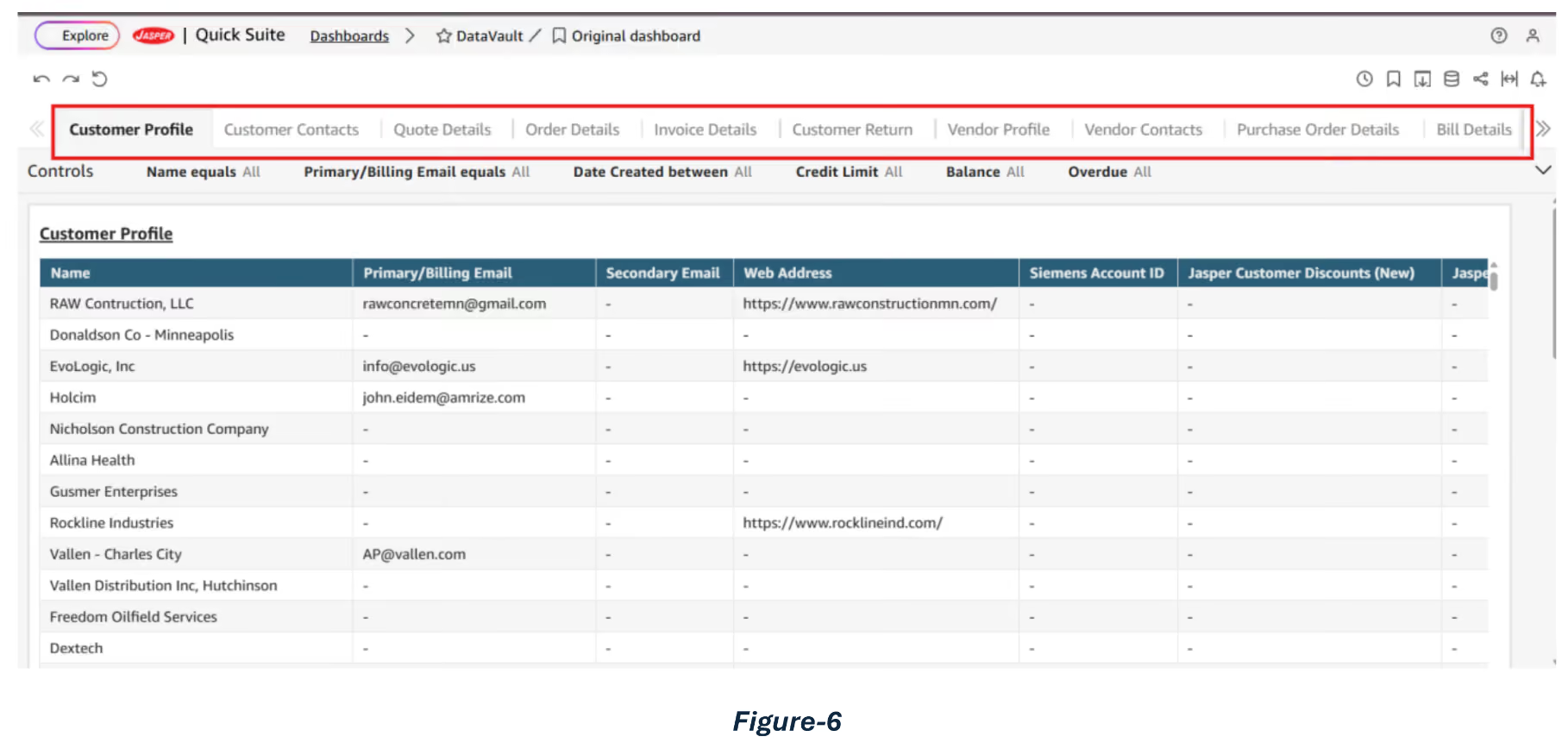
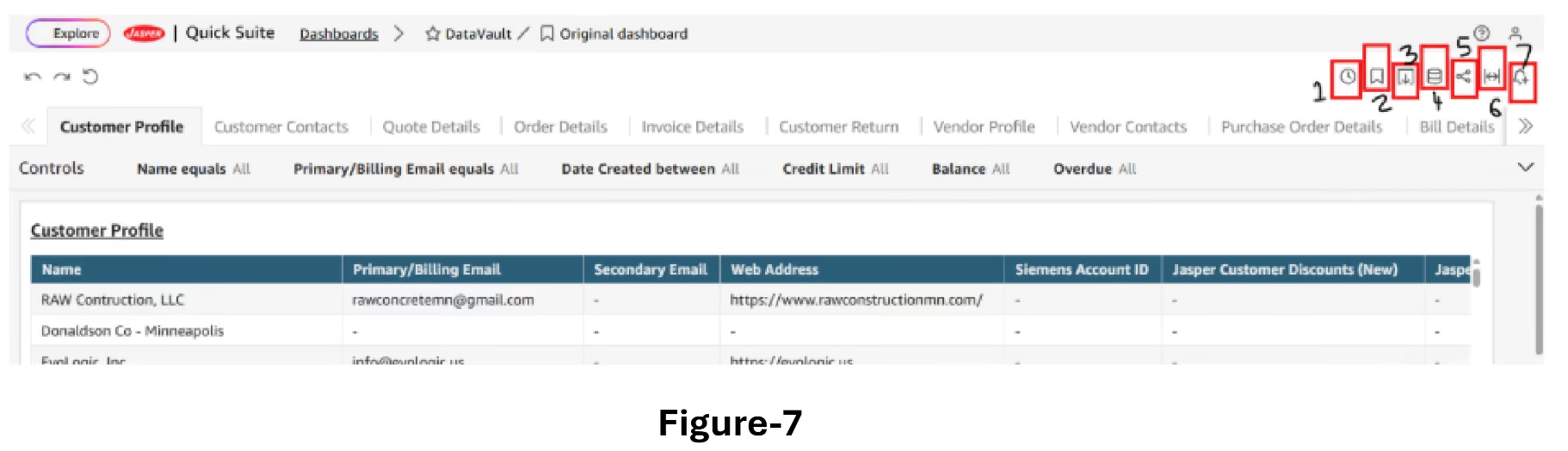
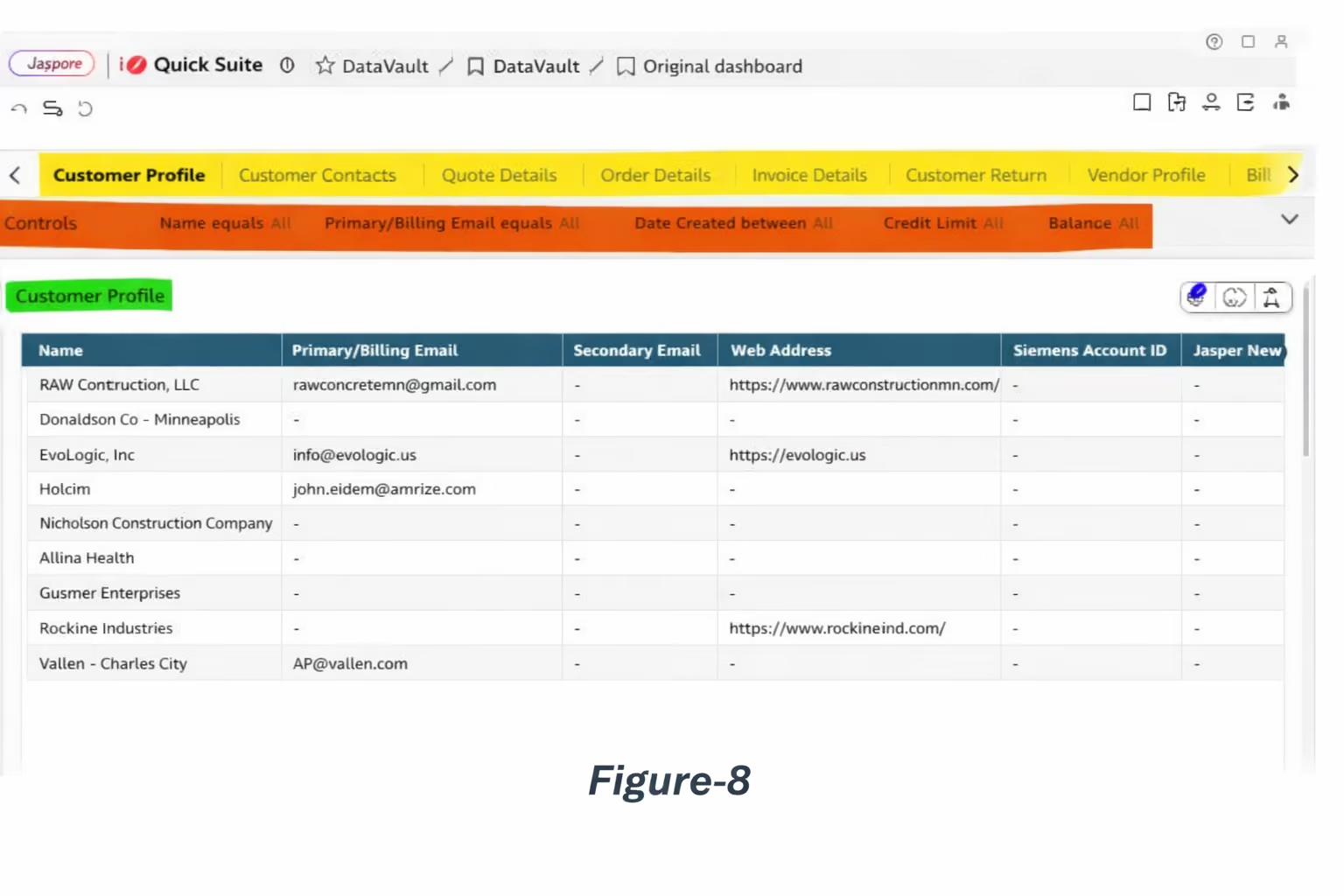
The page is divided into four main sections, as illustrated in (ref Figure 8):
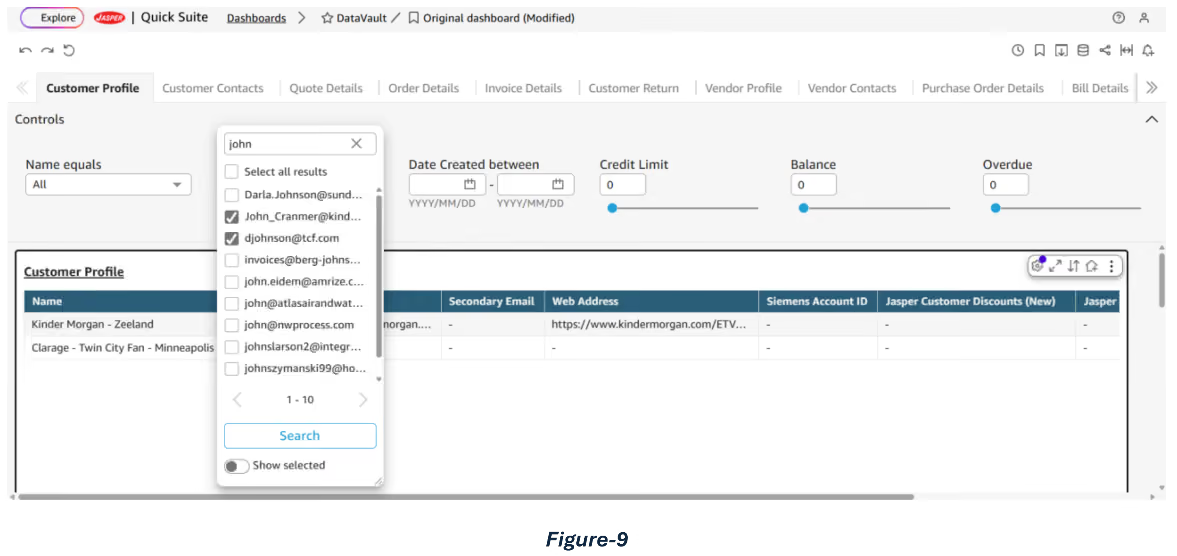
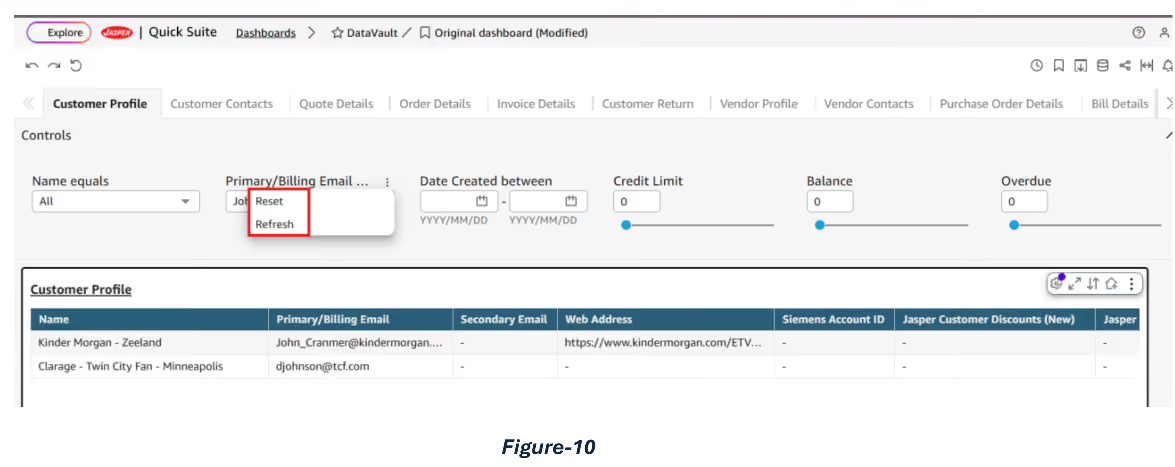
You can use the filters available in the Controls section to customize the data view based on your requirements. Once the filters are applied, the results will be automatically updated.
For example, as shown in the image (ref. Figure-9), to filter by email, you can enter the desired text in the filter field. The filter will then display a list of matching entries, which you can select to refine the results. Once selected, the filtered data will be automatically populated.
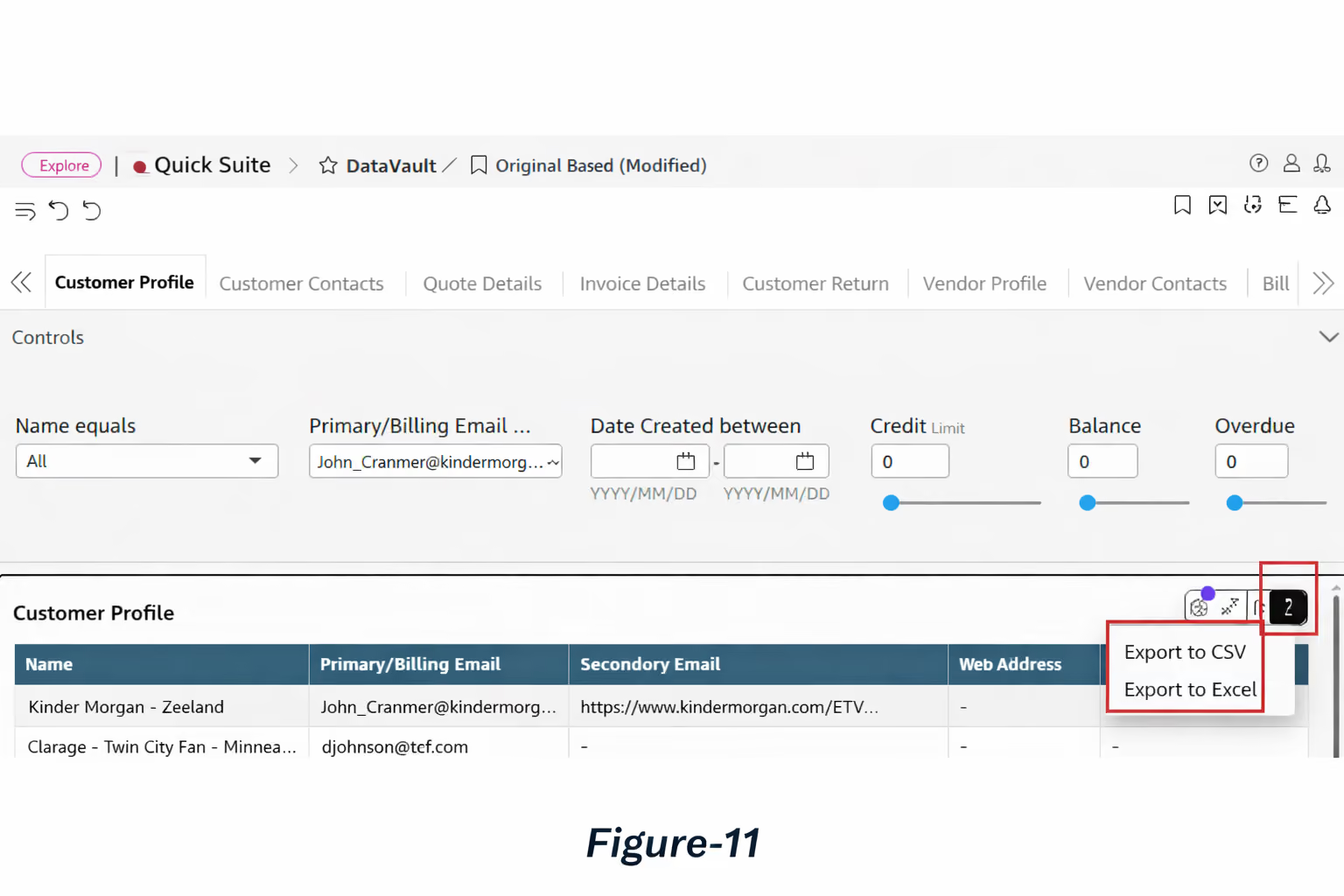
Under the Data section, click on the three dots menu to access the Export option. From there, you can export the data in either CSV or Excel format. (ref. Figure-11)
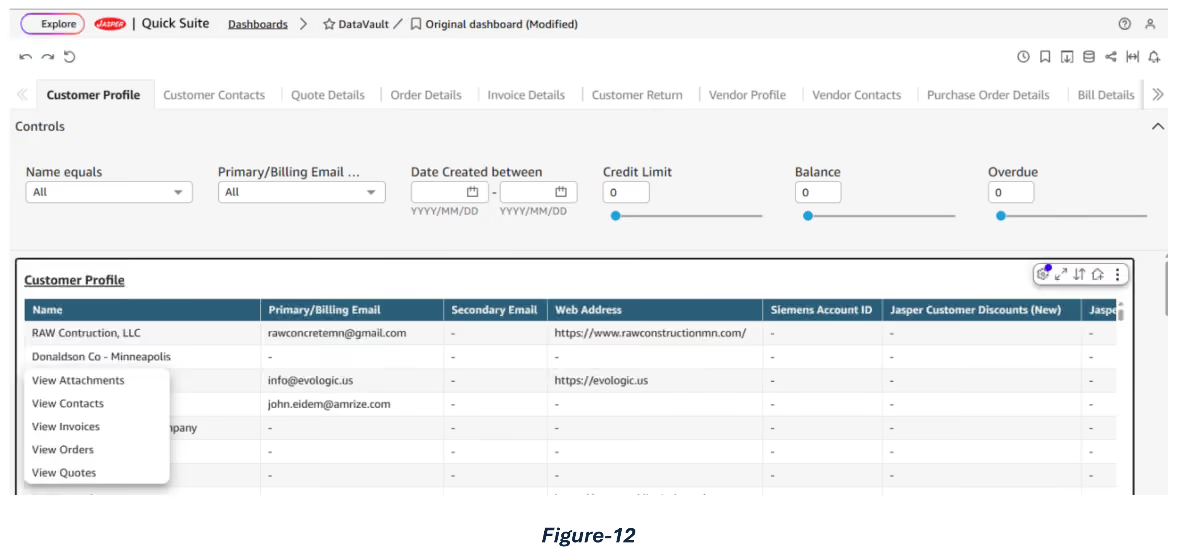
To view related records such as customers, transactions, linked to a customer in this screenshot, you can simply click on the relevant data (i.e. view customers, orders, Invoices etc.). This will display an option to View Related Records, allowing you to explore the associated details. (ref. Figure-12)
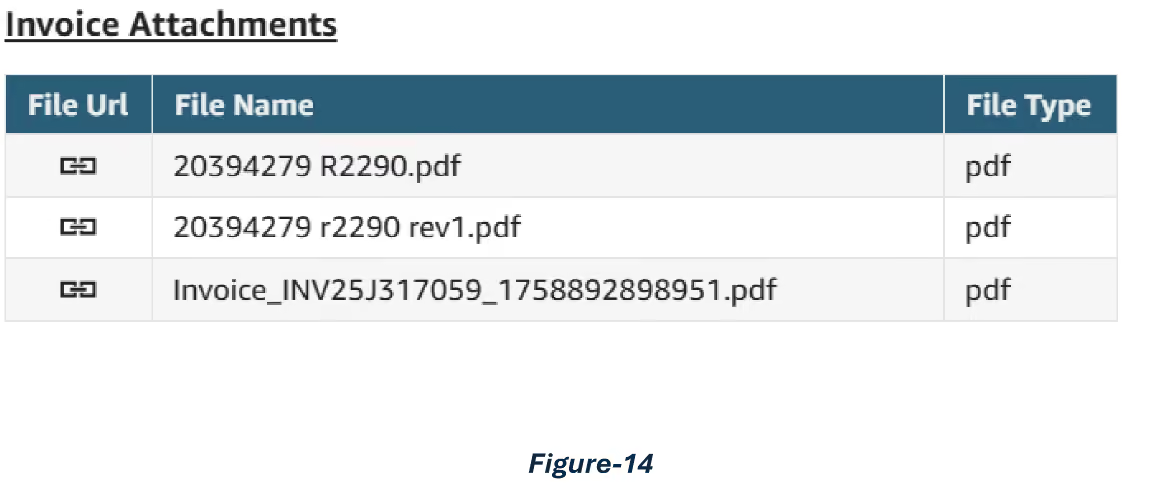
To view the attachment, click on the File link icon. It will open a new window with the related attachment. If it’s a PDF, you can download it/save it to your local system (ref. Figure-14)
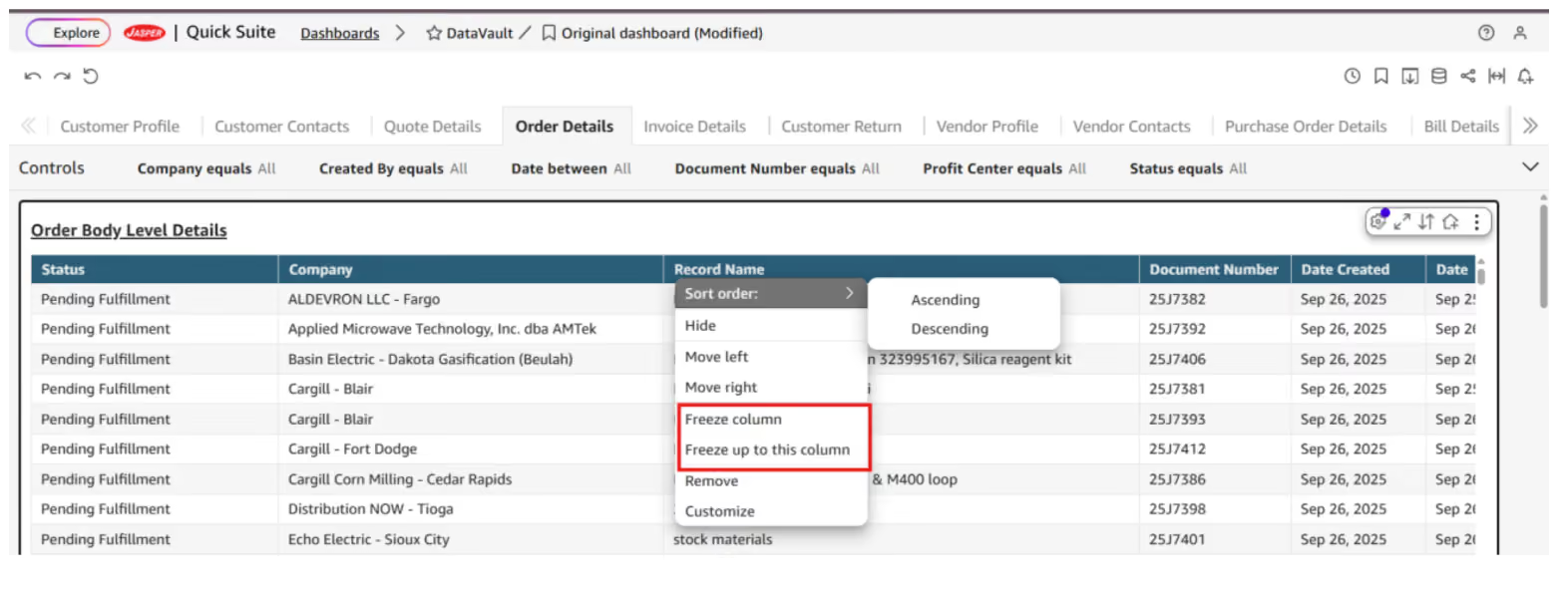
If you want to sort the data or columns in ascending or descending order, or freeze columns to compare specific data across rows, simply click on the column header. A menu will appear with relevant options, select the one that suits your needs. (ref. Figure-15)
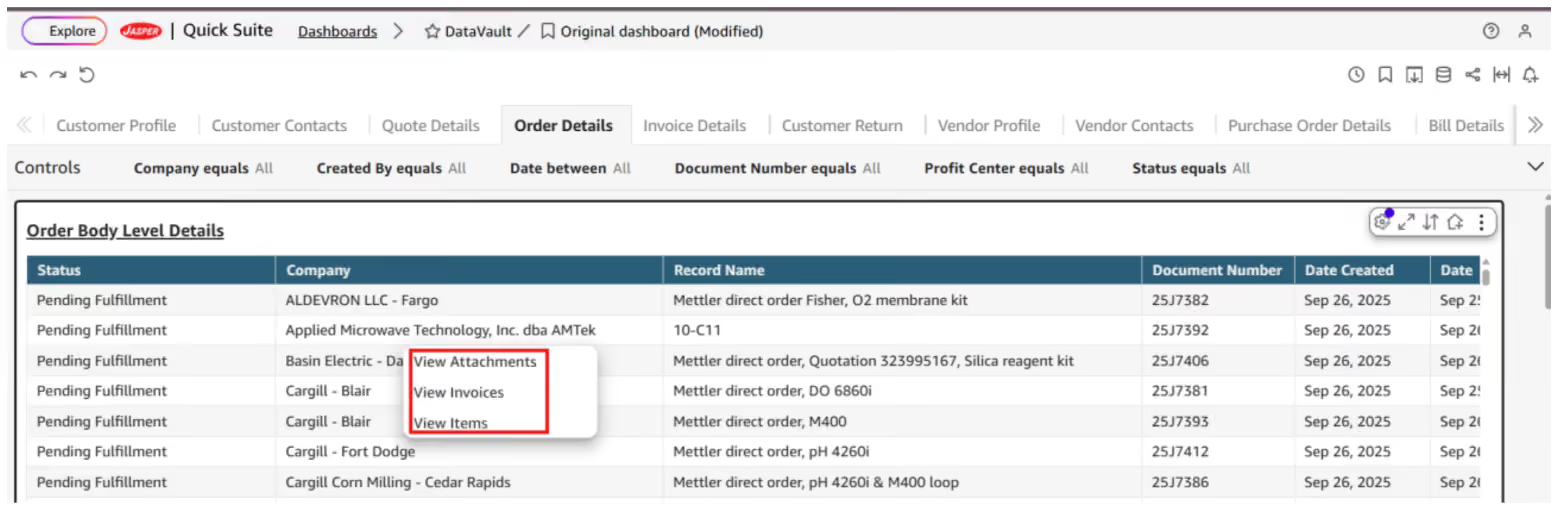
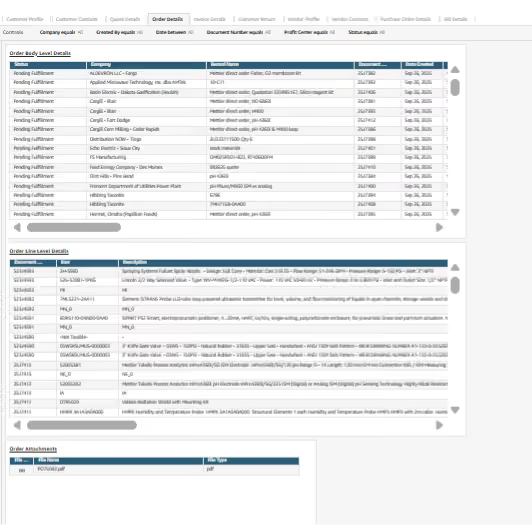
To view attachments related to a specific record, click on the corresponding order. You’ll see two options Attachments. Selecting either will instantly refresh the respective tables below and display the details associated with that record (ref. Figure-13)