You are browsing
79Consulting

Trading Partner automation allows businesses to manage B2B transactions and communications effectively.
Boomi Integration manages B2B requirements through Trading Partners, enabling direct EDI or point-to-point e-business transactions between a host partner and remote partners via agreed communication protocols.
The Trading Partner Connector enables reading or writing of EDI Documents of various standards.
Before configuring Trading Partner in Boomi, ensure the following:
Objective: Read EDI files using the Trading Partner connector.
Flow: Start shape should be Trading Partner Connector to read EDI Files.
If the star icon for “My Company” Trading Partner is selected, that trading partner’s settings are used as defaults.
Input Data to read:
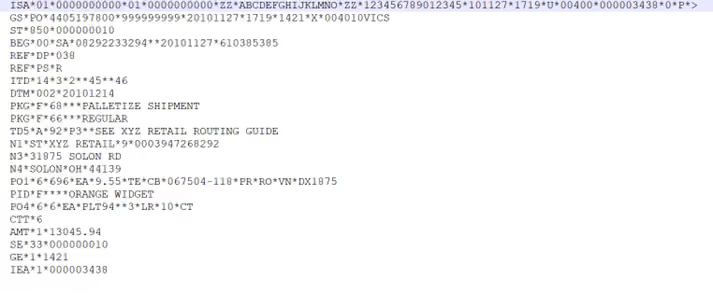
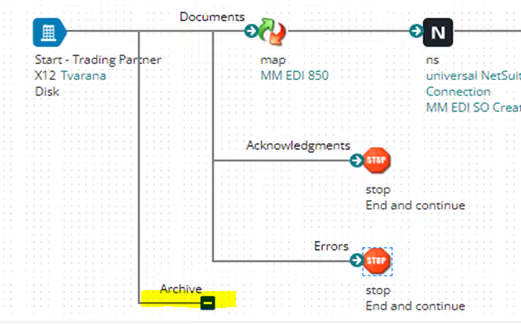
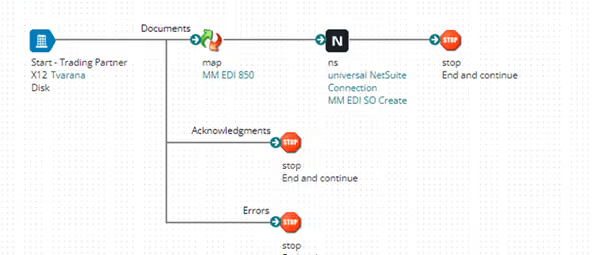
In this section, we’ll demonstrate how to read an EDI file.The process flow appears as follows:
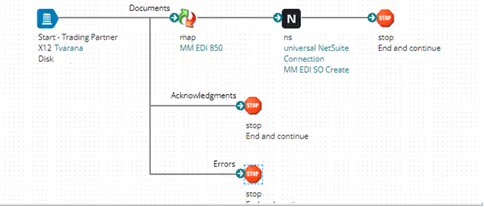
In Boomi, the Start Shape should be set to the Trading Partner Connector to read EDI files.
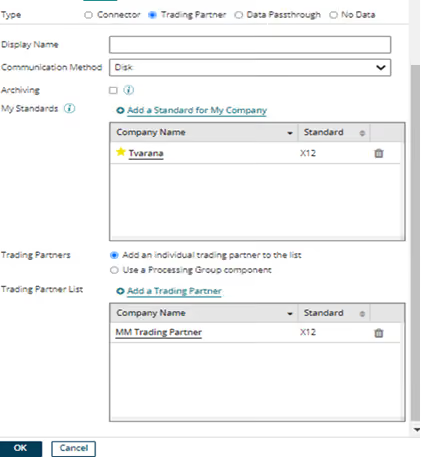
If the star icon for a “My Company” trading partner is selected, its settings for the chosen communication method become the default configuration for that method.
You need to create:
To distinguish between these, the Component Explorer displays:
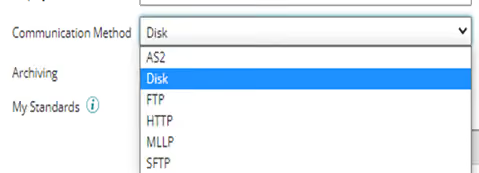
Select the communication method that will serve as the source for your EDI document.
Common communication methods used to send and receive Trading Partner document data include:
If selected, the Archive Path defines how raw document data will be archived.
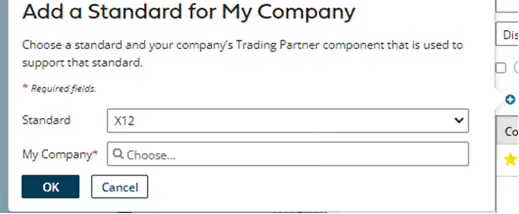
Click Add a Standard for My Company to configure your company’s standard. Choose a standard and associate it with your company’s Trading Partner component that supports that standard.
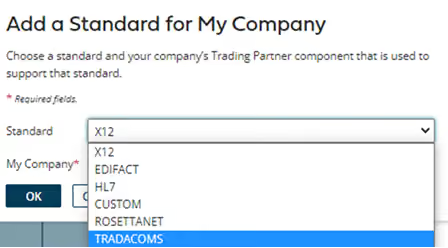
Select one of the available options for your standard:
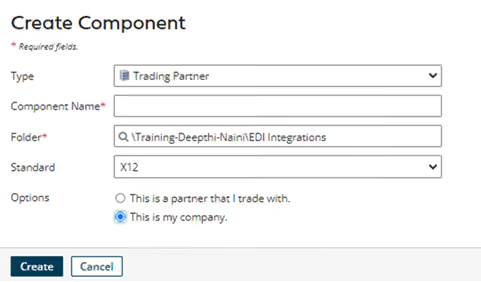
Steps to configure your company as a Trading Partner:
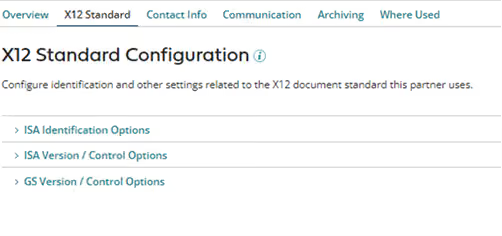
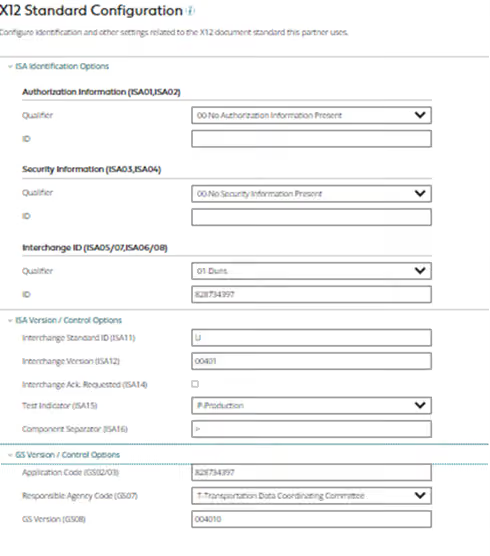
Once configured, your “My Company” Trading Partner is created. You can now define internal parameters for all fields.
Once configured, your “My Company” Trading Partner is created. You can now define internal parameters for all fields.
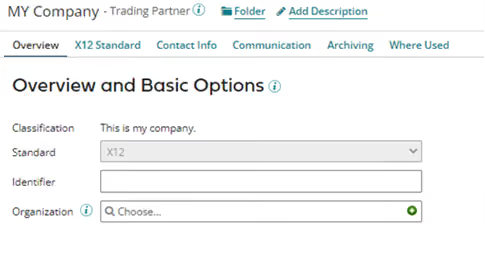
Classification : this values will be my company as while creating the component we configured it as my company
Standard : this will be the value which you configured the standard while creating the component
Identifier(not mandatory) : this will be your organization code.
Organization(not mandatory) : Yor organization details should be specified here.
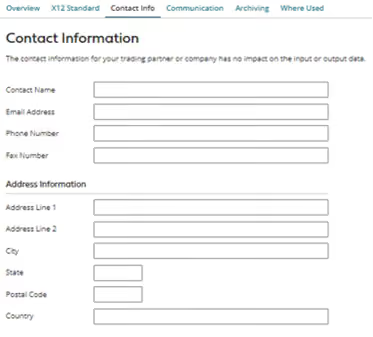
Enter the contact information of your trading partner or internal contact for reference.
This tab defines the communication method used to send and receive documents.
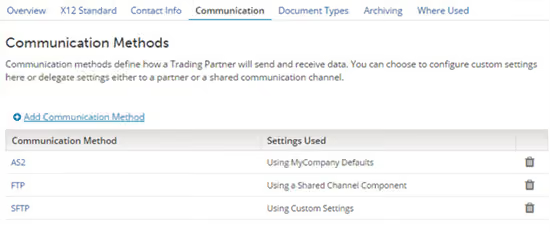
Available options include:
To set up a new method:
You can define each method once.
The table in this tab lists all defined methods and their current configuration.
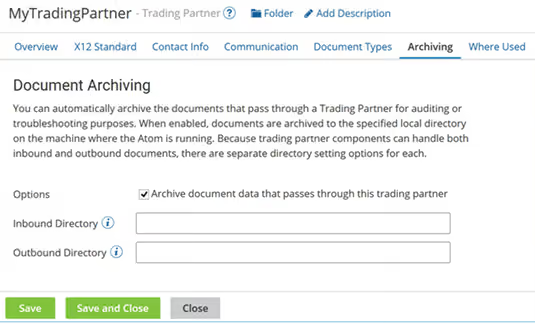
Automatically archive documents that pass through a Trading Partner to a specified local directory on the Atom machine.Separate directory settings exist for inbound and outbound documents.
The Trading Partner Where Used tab shows the processes that reference the selected trading partner.
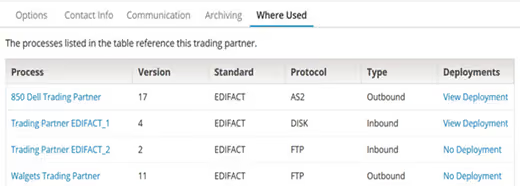
You can open the process to view or edit it by clicking the process name. Also, you can view the process deployment that contains the trading partner by clicking the link in the Deployments column to open the Deploy Processes page. If the link text reads View Deployment, the latest version of the process is deployed. If the link text reads No Deployment, the process is not deployed.
My company trading partner configuration is done..
If Add an individual trading partner to the list is selected, specify the partner in the Trading Partner List Tab.
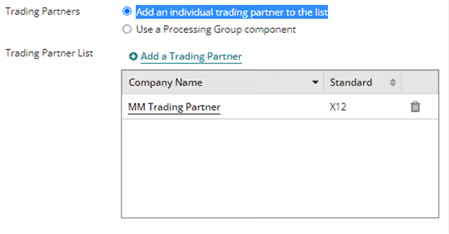
If Use a Processing Group component is selected, choose the processing group in the Processing Group Tab.
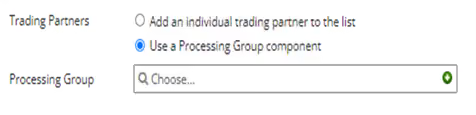
Click on Add a Trading Partner.
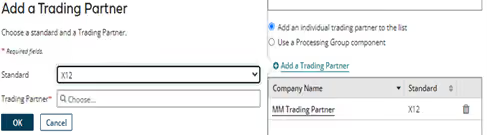
Create a component with the following details:
After configuration, the partner Trading Partner component is created.
Now configure internal values for each parameter.
Classification: this values will be my company as while creating the component we configured it as my company
Standard: this will be the value which you configured the standard while creating the component
Identifier(not mandatory) : this will be your organization code.
Organization(not mandatory) : Yor organization details should be specified here.
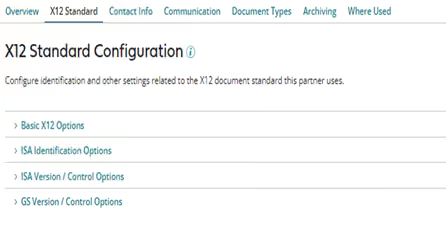
Applicable only for “partners you trade with” (not for “My Company”).
Configure:
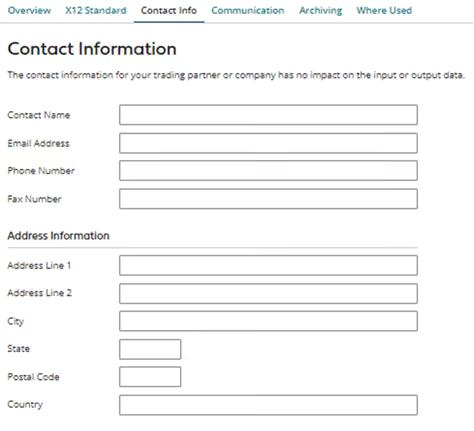
Provide contact information for the partner organization.
The Communication tab is where you define the communication method to use to send and receive documents with trading partners.
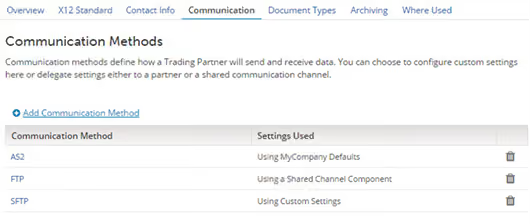
Supported methods are:
Follow the same setup steps as with My Company.
Partner Trading Partners can either use default settings from “My Company” or define their own.
The Communication tab table lists all configured communication methods.
To set up a new method, click Add a Communication Method, then select a method in the Add a Communication Method panel.
You can define each communication method once. When you add a communication method, the Edit Configuration panel opens. For Trading Partner components that are set to “my company,” you must configure the communication method settings manually. For Trading Partner components that are set to “partners that I trade with,” you can accept the default settings specified in the “my company” trading partner, specify unique settings to this partner, or use a shared Communication Channel component.
The table on the Communication tab identifies the communication methods that you have and, for “partners that I trade with,” the settings used.
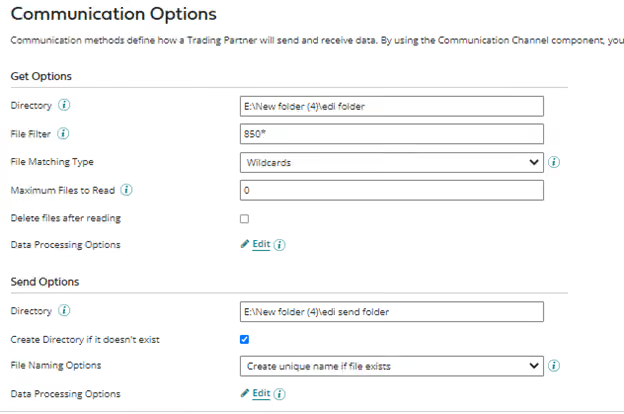
As shown below specify parameters to get the EDI documents from added communication methods.
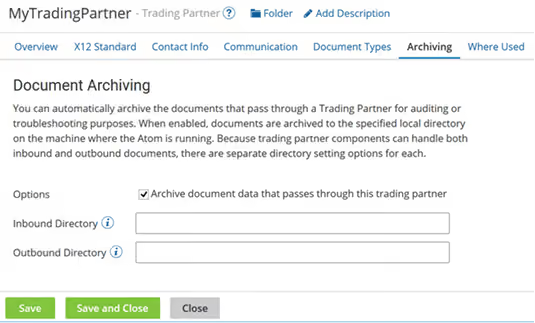
Automatically archive documents that pass through a Trading Partner to a specified local directory on the machine where the Atom is running.
The archiving options are similar to connector operation archiving settings. Because trading partner components can handle both inbound and outbound documents, there are separate directory setting options for each.
The Trading Partner Where Used tab shows the processes that reference the selected trading partner.
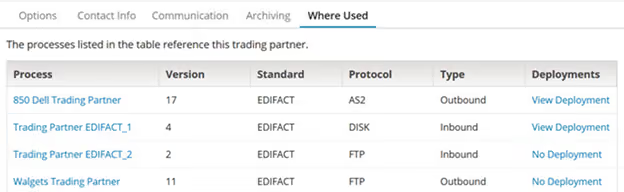
You can open the process to view or edit it by clicking the process name. Also, you can view the process deployment that contains the trading partner by clicking the link in the Deployments column to open the Deploy Processes page. If the link text reads View Deployment, the latest version of the process is deployed. If the link text reads No Deployment, the process is not deployed.
This flow demonstrates reading an EDI document (e.g., 850.edi) using the Trading Partner connector, transforming it to XML, and sending it to NetSuite.
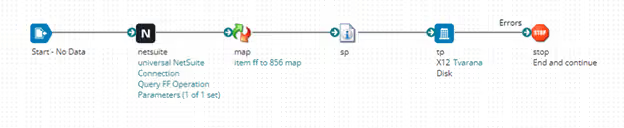
This flow demonstrates reading XML data from the NetSuite connector, transforming it into an EDI document (e.g., 856.edi), and sending it to the Trading Partner.
By setting up Trading Partners in Boomi, you can establish a reliable, automated, and compliant framework for exchanging EDI X12 documents with customers, suppliers, and business partners.
This configuration eliminates manual intervention, reduces errors, ensures data consistency, and strengthens audit readiness — enabling smoother B2B transactions and faster partner onboarding.
Whether you’re managing a single partner or a large multi-network EDI ecosystem, Boomi’s Trading Partner framework scales effortlessly to handle complex workflows while maintaining full visibility and control.
Ready to simplify your B2B integrations? Explore how our Boomi EDI services can help you automate Trading Partner setup, streamline integrations with NetSuite, and achieve faster transaction turnaround.